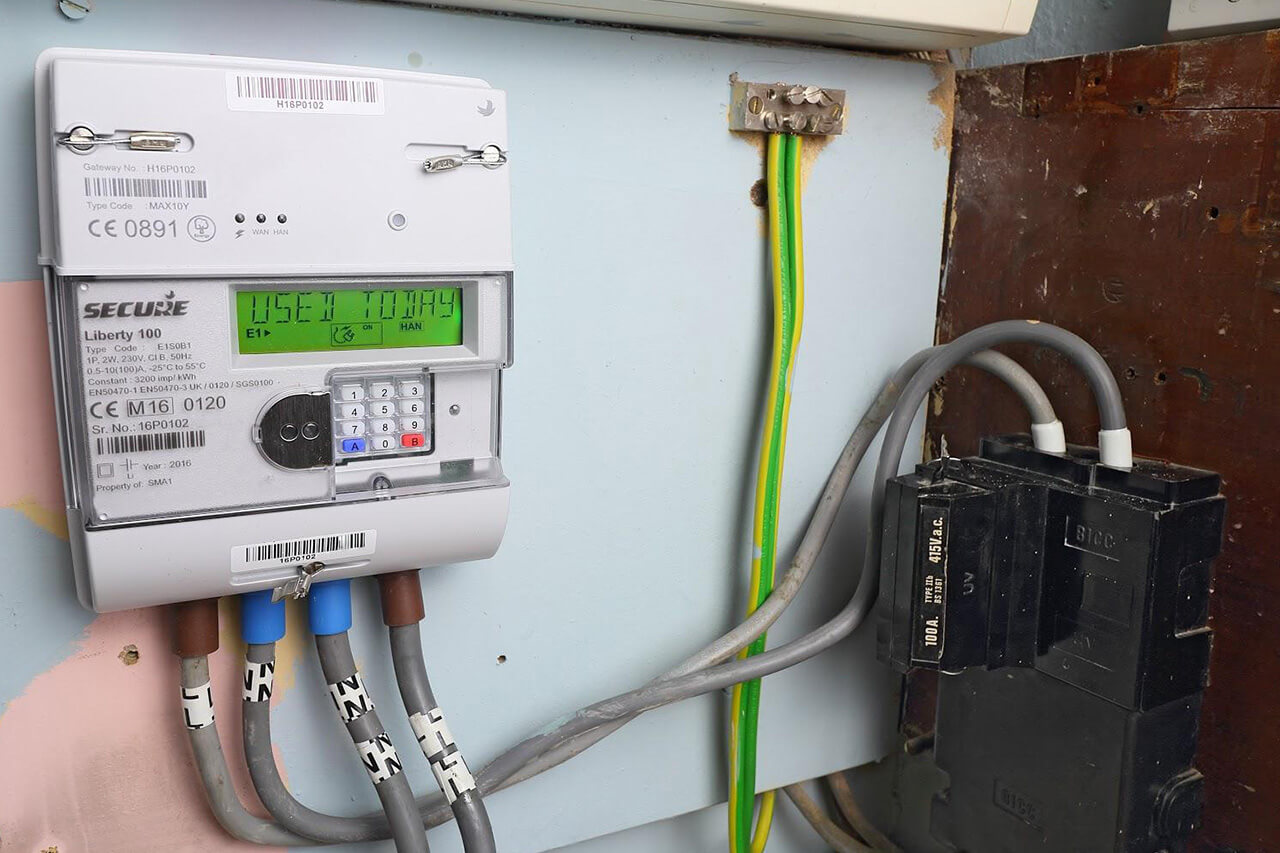
Smart meters have revolutionized how we track and manage our energy consumption‚ offering real-time insights that traditional meters simply couldn’t. These modern devices automatically send readings to your energy supplier‚ eliminating the need for manual submissions for many. However‚ many users are still unsure how to take a meter reading from a smart meter directly from the device itself‚ especially if their in-home display isn’t working or they need to verify a bill. Understanding how to take a meter reading from a smart meter empowers you to monitor your energy consumption‚ verify your bills‚ and ensure you’re only paying for what you use. This guide will walk you through the process‚ covering various smart meter types and common scenarios.
Decoding Your Smart Meter Display
Before you begin‚ it’s helpful to understand that there are generally two main types of smart meters in the UK: SMETS1 (older models) and SMETS2 (newer‚ more advanced models). While they both serve the same fundamental purpose‚ the way you interact with them to get a reading can differ slightly. Most smart meters have a digital display and one or more buttons‚ often labeled ‘A’‚ ‘B’‚ ‘ ‘OK’‚ or ‘Menu’. Your meter might also have an In-Home Display (IHD)‚ but we’ll focus on reading directly from the meter itself.
Step-by-Step: How to Read Different Smart Meter Models
The exact steps can vary based on your meter’s manufacturer and model‚ but here are general guidelines for common smart meter types:
Reading SMETS1 Smart Meters (Older Models)
These meters often have ‘A’ and ‘B’ buttons‚ or similar navigation buttons. - For Electricity Meters:
- Press the ‘A’ button repeatedly.
- Look for a reading that typically says ‘TOTAL’ or ‘R1’ (Register 1) followed by ‘kWh’. This is your main electricity reading.
- If you have a two-rate tariff (e.g.‚ Economy 7)‚ you might see ‘R1’ and ‘R2’ readings. Record both.
- For Gas Meters:
- Press the ‘A’ button.
- The screen should display a reading followed by ‘m3’. This is your gas reading.
- Some gas meters may cycle through different screens; continue pressing ‘A’ until you see the main numerical reading.
Reading SMETS2 Smart Meters (Newer Models)
SMETS2 meters are generally more standardized and often have a ‘Menu’ or ‘OK’ button. - For Electricity Meters:
- Press the ‘OK’ or ‘Menu’ button to wake the screen.
- Navigate through the menu options until you find ‘Current Reading’‚ ‘Meter Read’‚ or ‘Total kWh’.
- Select this option to display your reading. Again‚ if you have multiple rates‚ ensure you record all relevant registers (e.g.‚ ‘Rate 1’ and ‘Rate 2’).
- For Gas Meters:
- Press the ‘OK’ or ‘Menu’ button.
- Look for ‘Meter Read’ or ‘Total m3’ in the menu.
- Select it to view your gas reading.
SMETS2 meters are generally more standardized and often have a ‘Menu’ or ‘OK’ button.
- For Electricity Meters:
- Press the ‘OK’ or ‘Menu’ button to wake the screen.
- Navigate through the menu options until you find ‘Current Reading’‚ ‘Meter Read’‚ or ‘Total kWh’.
- Select this option to display your reading. Again‚ if you have multiple rates‚ ensure you record all relevant registers (e.g.‚ ‘Rate 1’ and ‘Rate 2’).
- For Gas Meters:
- Press the ‘OK’ or ‘Menu’ button.
- Look for ‘Meter Read’ or ‘Total m3’ in the menu.
- Select it to view your gas reading.
Always ensure you are recording the numbers before any decimal point‚ and note the units (kWh for electricity‚ m3 for gas).
Finding and Understanding Your Meter Data
Your meter is usually located near your fuse box for electricity or where your gas supply enters your property. Once you’ve navigated the buttons and found the reading‚ it’s crucial to understand what you’re looking at. For electricity‚ the unit is kilowatt-hours (kWh)‚ representing your total energy consumption. For gas‚ it’s cubic meters (m3)‚ which will later be converted to kWh for billing purposes. Regardless of the model‚ mastering how to take a meter reading from a smart meter ensures you have accurate data at your fingertips‚ allowing you to cross-reference with your bills and track your usage trends effectively.
What to Do with Your Reading
Once you have your reading(s): - Submit to your supplier: Even with a smart meter‚ sometimes manual readings are requested for verification or if the automatic connection is temporarily down.
- Monitor your usage: Compare current readings with previous ones to see your consumption over a period. This helps identify periods of high usage.
- Check your bills: Verify that the readings on your bill match what your meter displays. This is essential for ensuring accurate billing.
Common Challenges and Solutions for Smart Meter Readings
Sometimes‚ getting a reading isn’t straightforward. Here are a few common issues and what to do:
- Blank or unresponsive display: The meter might be in sleep mode. Try pressing any button to wake it up. If it remains blank‚ there might be a power issue or fault‚ and you should contact your energy supplier.
- Confusing multiple readings: Some meters show various data points (daily usage‚ peak usage‚ etc.). Always look for ‘TOTAL’ or the main register for your overall consumption.
- Different units for gas: Gas meters read in m3. Your bill converts this to kWh. Don’t worry if the units differ between your meter and bill; this is normal.
Frequently Asked Questions About Smart Meter Readings Q: Do I still need to submit readings with a smart meter?
A: Ideally‚ no. Your smart meter should automatically send readings to your supplier. However‚ there are instances where you might be asked to provide one‚ such as when switching suppliers‚ if there’s a communication issue‚ or for verification purposes. Knowing how to read it directly is always beneficial.
Q: What if my In-Home Display (IHD) isn’t working?
A: If your IHD isn’t working‚ you can still get your reading directly from the smart meter itself. The IHD is a convenience tool‚ not the meter itself. Follow the steps above to read your electricity and/or gas meter directly.
Q: How often should I check my smart meter reading?
A: While not strictly necessary for billing‚ checking your reading periodically (e.g.‚ once a month or weekly) can help you monitor your energy consumption patterns‚ identify potential issues‚ and stay on top of your usage.
Q: What’s the difference between SMETS1 and SMETS2 smart meters?
A: SMETS2 meters are the second generation of smart meters‚ designed with improved communication capabilities and interoperability‚ making it easier to switch suppliers without losing smart functionality. SMETS1 meters are older and sometimes lose smart functionality when you switch suppliers‚ requiring them to be read manually.
Q: My smart meter shows ‘credit’ or ‘debt’ – what does that mean?
A: This typically refers to the balance on your prepayment smart meter‚ not your consumption reading. The consumption reading will usually be a separate display item‚ often labeled ‘TOTAL’ or ‘kWh’/’m3’.
Knowing how to take a meter reading from a smart meter is a valuable skill that gives you greater control over your energy use and helps ensure billing accuracy. While smart meters automate much of the process‚ understanding how to access the raw data from the device empowers you to be an informed consumer. By following these simple steps‚ you can confidently read your smart meter whenever needed.